Installation and Setup Guide
Get the Task Tracking app running in your Shopify store.
Requirements
All you need is a running Shopify Store, then perform the following:
- Visit Task Tracking on the Shopify App Store.
- Click install and follow the process to install an app.
Shopify Admin Setup
The Task Tracking app is most powerful when steps are followed in the Shopify Admin.
Task Tracking App Pinning
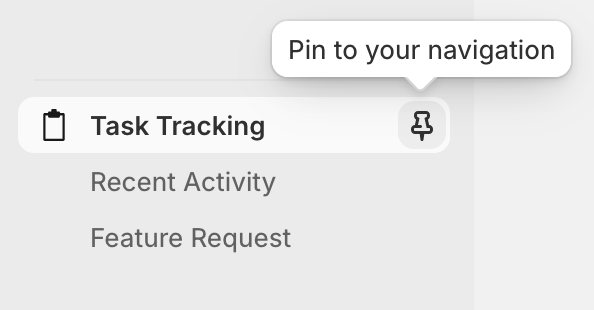
Pin the Task Tracking app in the Shopify sidebar for rapid access. This allows quick access to Task tracking from anywhere within the Shopify Admin. Everyone who accesses your Shopify Admin will need to perform this action once. To pin Task Tracking:
- Click on Apps in the sidebar.
- Click on Task Tracking.
- Click the pin icon next to the Task Tracking app name to pin it to the sidebar. You can also click the "Pin to your navigation" link in the application header.
Order Page Widget
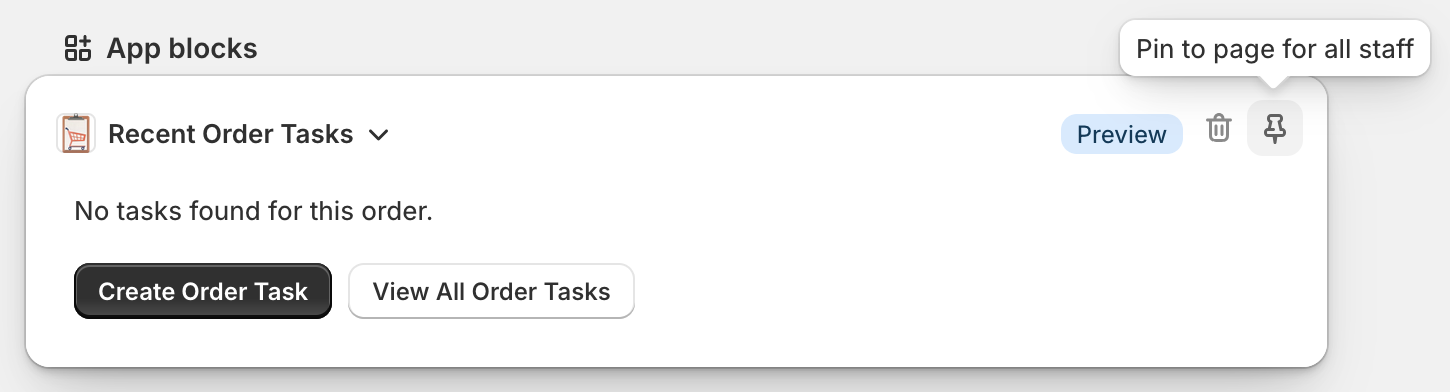
You can pin Task Tracking to an order page to quickly create tasks that are linked to orders. This is useful for cases where you are performing a task for some order after they have paid. In order to do this:
- Navigate to an Order Page.
- Click + App Block
- Click Recent Order Tasks
- Click the
Pin to page for all stafficon.

Customer Page Widget
Similarly to the Order Page Widget, you can pin the Task Tracking App to the Shopify Customer Page.
- Navigate to a Customer Page.
- Click + App Block
- Click Recent Customer Tasks
- Click the
Pin to page for all stafficon.


Draft Order Page Widget
The Draft Order Page does not yet have a Task Tracking page widget, but you can add Draft Orders to a task.
Point of Sale
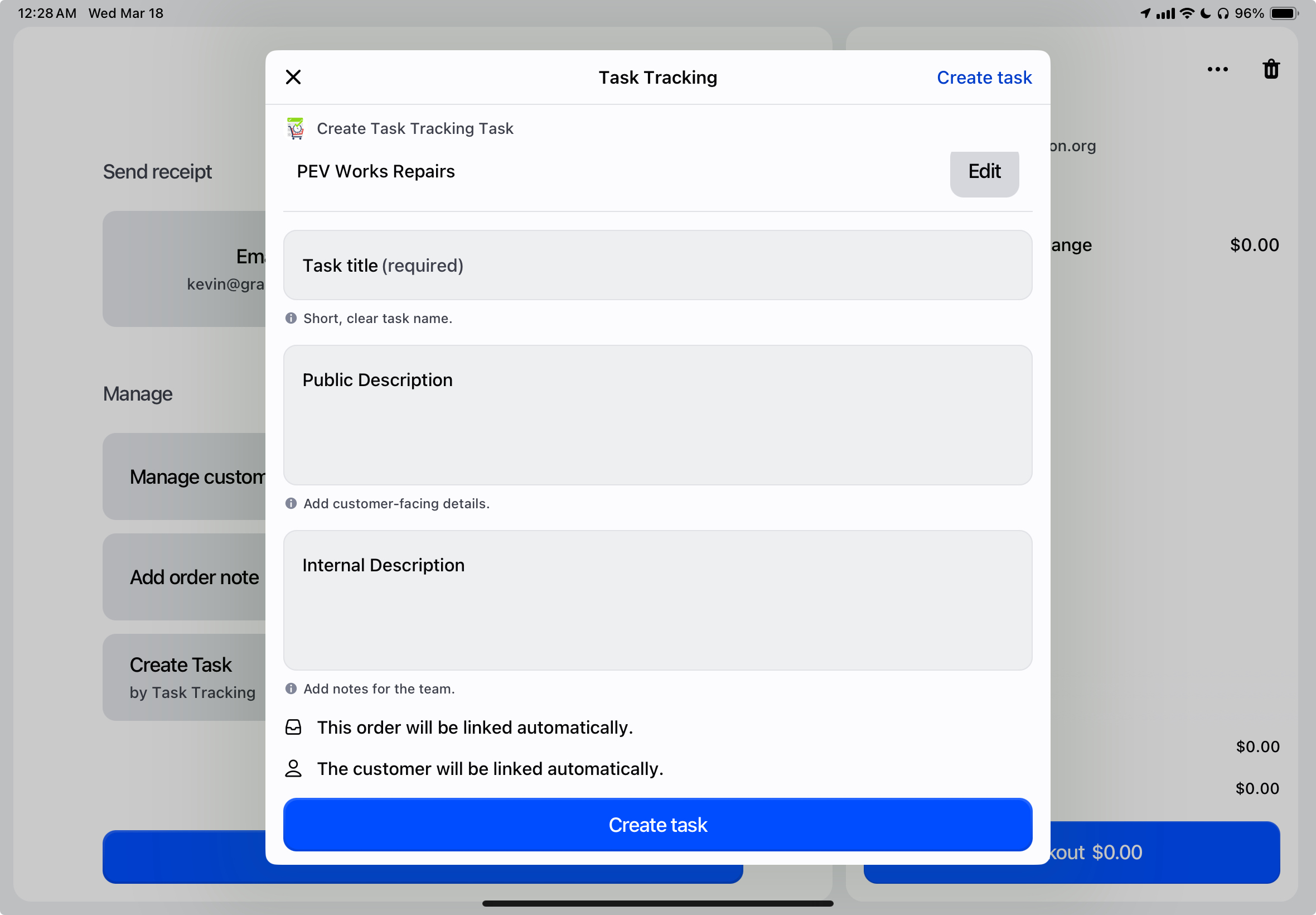
Task Tracking can be integrated to your Shopify POS system to quickly create tasks after the checkout flow, or from an order page.
To connect Task Tracking to Shopify POS records:
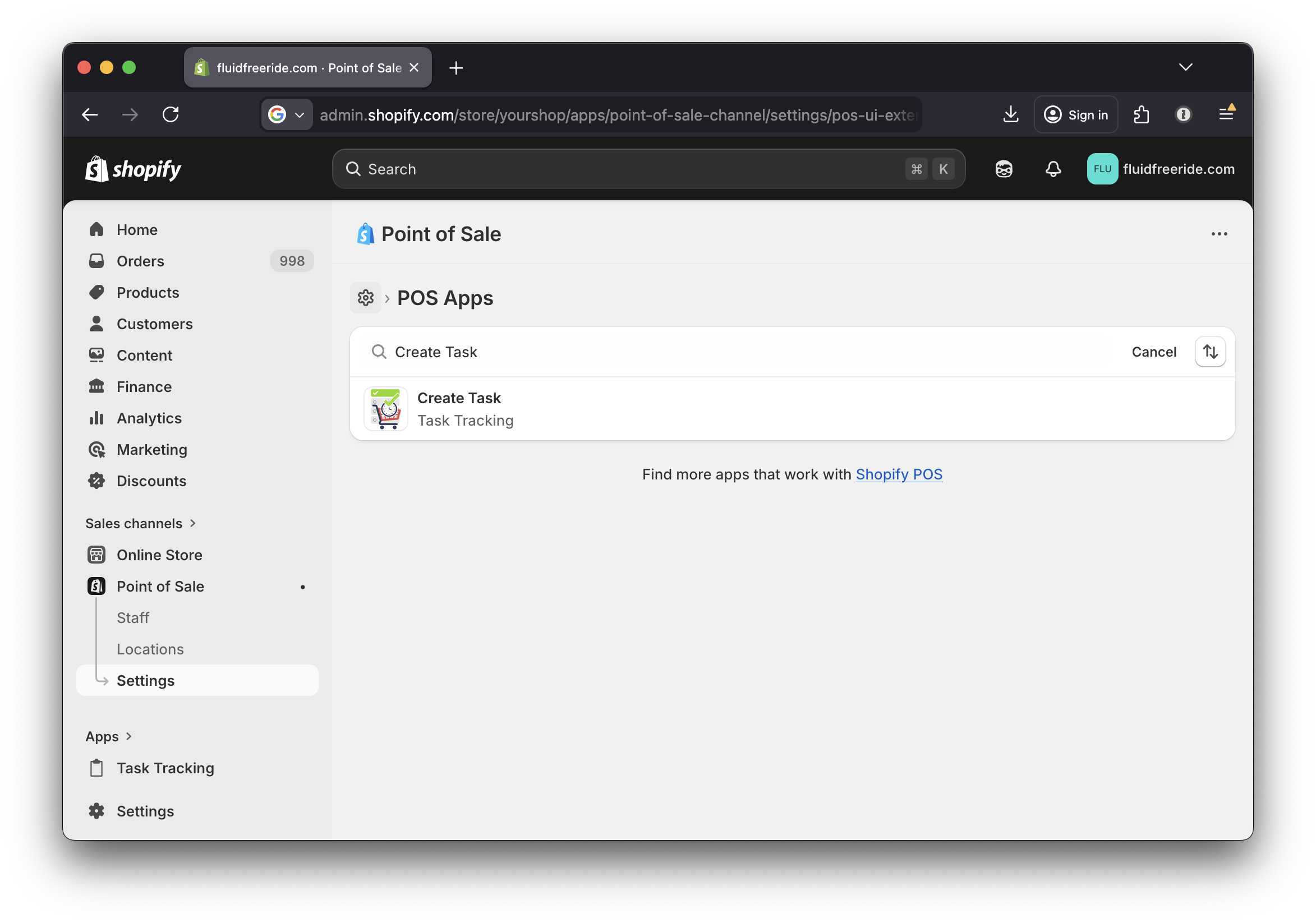
- In Shopify admin, go to
Point of Sale. - Open
Settings. - Find
Create Task. - Click
Add.
Now that you have Task Tracking installed:
- Mobile Shortcuts - Configure a shortcut on your mobile device